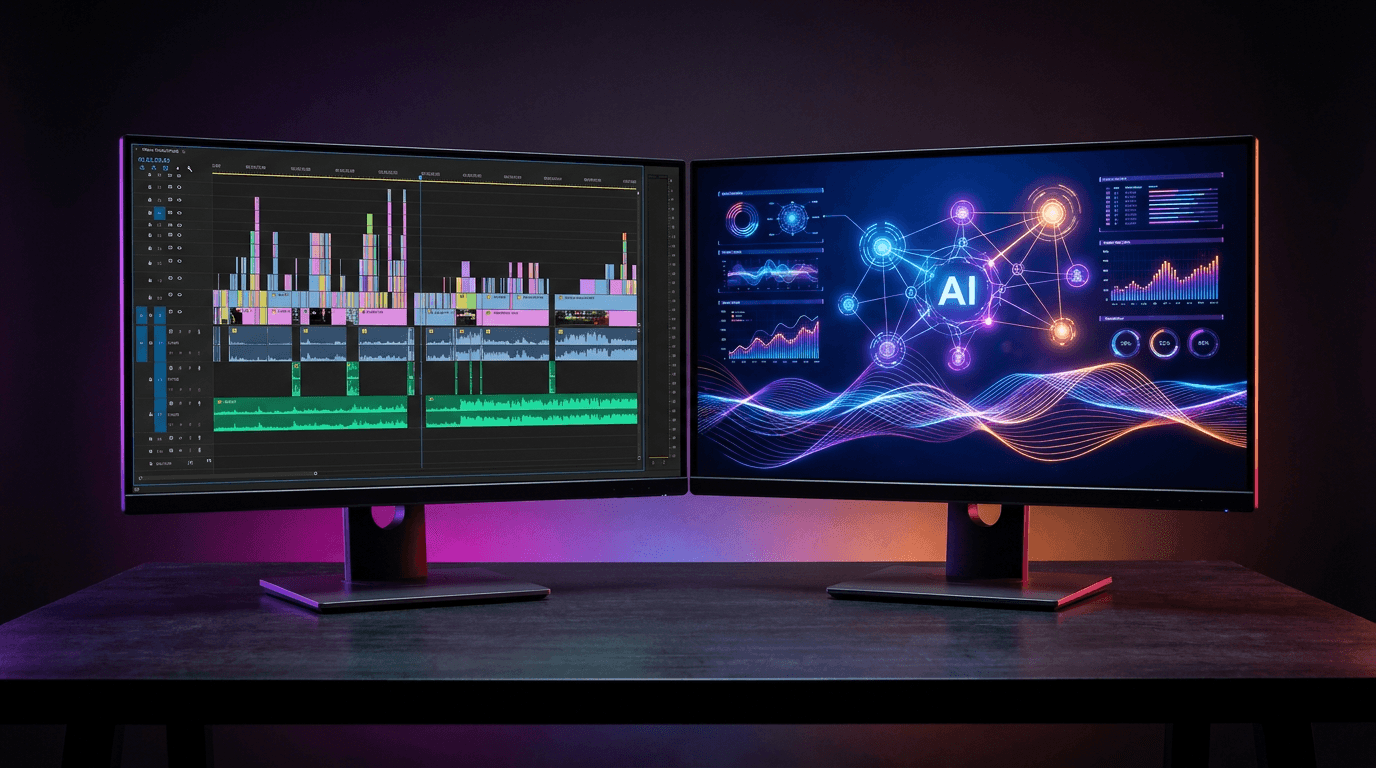
Scaling short-form video content is a brutal numbers game. To stay relevant on YouTube Shorts, TikTok, and Instagram Reels, creators and brands are pressured to post 1 to 3 times every single day. If you are chained to a traditional editing timeline, hitting that quota is nearly impossible without burning out or hiring an expensive agency.
For years, creators have turned to the Canva video editor to simplify their workflow. It is accessible, cloud-based, and packed with templates. But as artificial intelligence reshapes the creator economy, a new category of software has emerged: the dedicated AI shorts maker. Tools like Opus Clip, Submagic, and Vizard promise to do in minutes what takes hours in traditional editors.
So, when you strip away the marketing hype, which workflow is actually faster? We put Canva head-to-head against modern AI video tools to see exactly where each platform shines, where they fail, and how you can optimize your production pipeline for maximum output.
The Traditional Route: The Canva Video Editor Workflow
Canva revolutionized graphic design, and over the past few years, it has aggressively expanded its video capabilities. The Canva video editor operates on a familiar, simplified timeline interface. You drop your footage in, drag the edges to trim, and layer text or graphics on top.
For basic edits, it works. If you need to quickly trim the fat off a 15-second clip of your product and slap a logo on it, Canva gets the job done in about five minutes.
However, short-form video has evolved. The current meta demands rapid-fire pacing, dynamic word-by-word captions (often called "Hormozi-style" captions), sound effects, and constant visual resets. This is where the Canva video editor hits a massive bottleneck.
Creating a highly engaging, 60-second talking-head Short in Canva requires you to:
- Manually scrub through the footage to find the best hook.
- Use the split tool (
S) dozens of times to cut out dead air, breaths, and "ums." - Type out captions manually or rely on Canva's basic auto-sync feature, which applies static blocks of text rather than kinetic, word-by-word highlighting.
- Manually animate text blocks to pop in and out.
- Hunt through the audio library to manually place whoosh and pop sound effects on the exact frame the text appears.
Time to completion: 20 to 35 minutes per Short. If you need to post twice a day, you are spending over an hour just doing basic timeline management.
The "Hack": Canva Bulk Create Shorts
There is one specific scenario where Canva's speed is genuinely unrivaled: the "Faceless" niche. If your content strategy revolves around motivational quotes, trivia questions, or psychology facts, you can leverage the Canva bulk create shorts method to generate a month's worth of content in minutes.
Here is the exact workflow for bulk creation:
- Step 1: Generate 30 quotes or trivia questions using ChatGPT and export them as a CSV file.
- Step 2: Open a 9:16 mobile video template in Canva and set up your background (e.g., a looping video of a sunset or abstract 3D shapes).
- Step 3: Add your text boxes and format the fonts, colors, and animations.
- Step 4: Open the "Bulk Create" app in Canva, upload your CSV, and connect the data fields to your text boxes.
- Step 5: Click "Generate." Canva instantly creates 30 individual video pages, each featuring a different quote from your spreadsheet.
Time to completion: 10 to 15 minutes for 30 to 50 Shorts.
This is a phenomenally fast workflow. However, it is entirely restricted to text-over-background videos. The moment you introduce human subjects, talking heads, or podcast footage, the bulk create feature becomes useless. You cannot bulk-edit dynamic video cuts, face tracking, or audio syncing.
The Modern Route: Using an AI Shorts Maker
If you are editing podcasts, vlogs, webinars, or talking-head videos, a dedicated AI shorts maker completely obliterates the traditional editing timeline.
Tools like Opus Clip, Klap, Munch, and Descript are built from the ground up for one specific task: turning long-form talking videos into viral short-form clips. Instead of giving you a blank canvas and a timeline, these tools use machine learning to act as an automated assistant editor.
The workflow looks like this:
- Paste a YouTube link or upload a raw video file (e.g., a 45-minute podcast episode).
- Walk away and grab a coffee.
- Return 10 minutes later to a dashboard containing 15 to 20 fully edited Shorts.
These tools don't just randomly slice footage. They analyze the transcript for high-retention topics, score the clips based on predicted virality, and automatically reframe the video. If two people are talking on a wide podcast set, the AI uses face tracking to crop them into a split-screen 9:16 format, ensuring whoever is speaking is always centered.
Furthermore, the captions are generated and animated instantly. The AI highlights the active word, injects relevant emojis, and even bleeps out profanity if requested.
Time to completion: 5 to 10 minutes for 10+ highly produced Shorts.
Head-to-Head Speed Test: Canva vs AI Tools
To give you a concrete idea of the speed difference, let's look at three common content creation scenarios.
Scenario 1: Repurposing a 1-Hour Podcast into 10 Shorts
- Canva Video Editor: You must watch the entire hour, note the timestamps, manually slice the clips, reframe the 16:9 footage to 9:16 (which requires keyframing if the subjects move), and generate captions for each clip.
- Time: 3 to 5 hours.
- AI Shorts Maker: Paste the link, let the AI process it, and briefly review the auto-generated clips to tweak the caption colors.
- Time: 15 minutes.
- Winner: AI Shorts Maker (by a landslide).
Scenario 2: Editing a 60-Second Raw Talking Head Video
- Canva Video Editor: Import the clip, manually cut out the 5 mistakes you made while recording, add text, and adjust the pacing.
- Time: 20 minutes.
- AI Shorts Maker: Upload the clip. The AI automatically removes silences and filler words, centers your face, and applies kinetic typography.
- Time: 3 minutes.
- Winner: AI Shorts Maker.
Scenario 3: Creating 50 "Psychology Facts" Faceless Shorts
- Canva Bulk Create Shorts: Upload a CSV, map the data, and generate 50 clips with a looping background.
- Time: 10 minutes.
- AI Shorts Maker: Most AI clipping tools are not designed for generating text-only videos from spreadsheets. You would have to use a specialized text-to-video AI, which often takes longer to render individual scenes.
- Time: N/A or significantly longer.
- Winner: Canva.
Feature Comparison: Finding Your Canva Alternative for Video
If you realize that Canva's manual timeline is holding back your talking-head content, you need to look at specialized platforms. Here is how Canva stacks up against popular AI alternatives.
| Feature | Canva Pro | Opus Clip | Viral Day |
|---|---|---|---|
| Best For | Graphic design, Faceless Shorts | Podcast clipping, Talking heads | High-volume creators, Agencies |
| Auto-Captions | Basic (Static blocks) | Dynamic (Word-by-word, Emojis) | Dynamic (Word-by-word, Emojis) |
| Face Tracking | Manual keyframing only | Yes (Auto-reframing) | Yes (Advanced Auto-reframing) |
| Silence Removal | Manual cutting | Automatic | Automatic |
| Virality Analysis | None | AI Virality Score | 18 Viral Analysis Parameters |
| Auto-Posting to Socials | Yes (via Content Planner) | No (Export only) | Yes (TikTok, Reels, Shorts) |
| Audience Engagement | None | None | AI Auto-Replies & DMs |
| Price | ~$15/month | ~$19/month (Limited minutes) | Roughly 4x cheaper than Opus Clip |
While Opus Clip is the most recognized name in the AI clipping space, it has limitations—specifically regarding cost and distribution. It gets expensive quickly if you process a lot of footage, and once the clips are generated, you still have to manually download and upload them to your social channels.
If you need a true, end-to-end Canva alternative for video that handles the entire pipeline, Viral Day is engineered specifically for aggressive scaling. Not only does it clip and caption your videos with face tracking and 1080p export, but it also evaluates your content against 18 viral analysis parameters to ensure the hooks are mathematically optimized for the algorithm.
The Ultimate Workflow for Maximum Output
The most successful creators don't rely on just one tool; they build a tech stack that leverages the specific strengths of multiple platforms.
If you want to edit faster, stop trying to force Canva to be a high-end video editor. Instead, use Canva for what it does best: graphic design. Use Canva to design your YouTube channel art, craft your video thumbnails, and build your brand kit assets (logos, specific hex codes).
Then, move your actual video processing to an AI shorts maker.
For example, you can set up your custom fonts and brand colors inside a tool like Viral Day. You shoot a 20-minute talking-head video outlining your industry expertise. You upload that single file, and the AI instantly chops it into 8 high-retention Shorts, applies your specific brand colors to the captions, and removes all your awkward pauses.
Because Viral Day includes auto-posting to TikTok, YouTube Shorts, and Instagram Reels, you can schedule those 8 videos to drip out over the next four days. Furthermore, the platform's AI auto-replies and DMs will engage with the comments while you sleep. You have effectively done a week's worth of social media management and video editing in about 15 minutes.
Conclusion: Which is Actually Faster?
The verdict is clear, but context-dependent. If your entire content strategy relies on faceless quote videos or static image slideshows, the Canva bulk create shorts feature is an unbeatable speed hack.
However, if you are a coach, podcaster, agency, or creator relying on your face and voice to build a brand, the Canva video editor is far too slow and manual. An AI shorts maker is objectively faster, cutting down hours of tedious timeline scrubbing into mere minutes of automated processing.
To truly scale your output without breaking the bank or spending your weekends editing, you need software built for the current algorithmic landscape. Try Viral Day for free and experience the speed of an end-to-end AI video pipeline that doesn't just edit your clips, but actively helps them go viral.